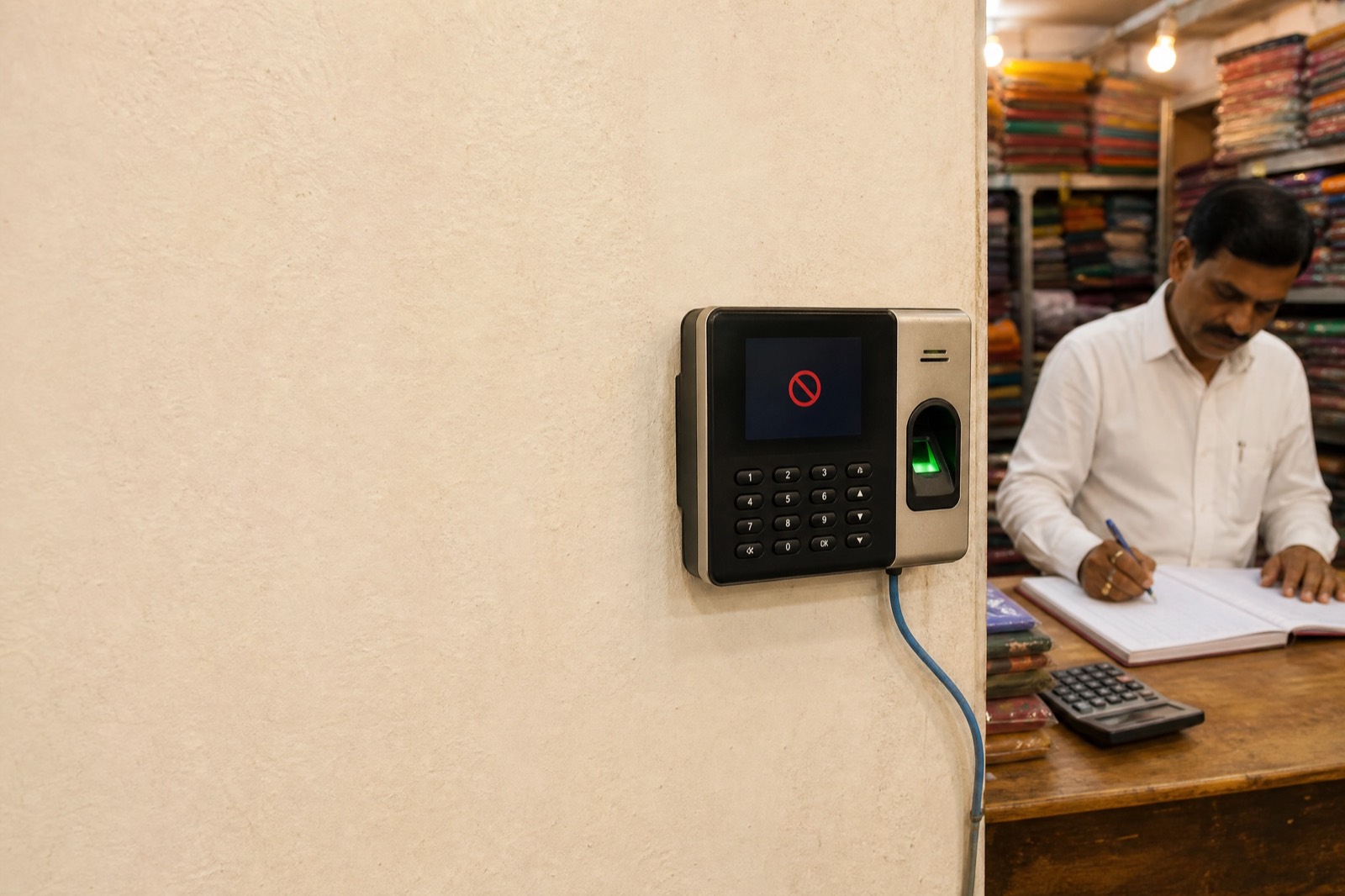

It was working yesterday. Nobody touched a thing. And now eTimeTrackLite has a red dot next to your device name and the word “Offline,” while fifteen people are standing near the machine wondering whether their punch actually got recorded.
If that sounds like your morning, you’re in the right place. This guide is for eSSL devices that were connected and syncing and then stopped — not for machines fresh out of the box. If you’re setting up for the first time, start with our full guide on connecting a biometric device to your computer instead. Everyone else, keep reading.
The good news: most eSSL “device offline” errors come down to one of three things. All three can be checked in about five minutes. The bad news: nobody — not eSSL’s own documentation, not the vendor who sold you the machine — usually explains what those three things are in language a shop owner can act on.
- Check if the device IP changed: on the machine, Menu → Comm → Network.
- Ping it from your PC:
ping 192.168.1.201(your device’s actual IP) in Command Prompt. - Restart the RD Service in
services.msc, then reconnect in eTimeTrackLite.
The 5-minute fix (start here)
Do these in order. Don’t skip ahead. Each one rules out a category of problem, and the later fixes are pointless if the earlier ones aren’t clean.
1. Walk to the machine and check the IP
I know. You want to fix this from your desk. But the single most common reason an eSSL device goes offline is that its IP address changed, and the only way to confirm that is to look at the device screen.
Press Menu. Go to Comm → Network — some models say Comm → Ethernet. Read the IP address. If you configured it as 192.168.1.201 during setup and it still reads 192.168.1.201, the device side is fine. Move on.
But if it now reads 0.0.0.0, some number you’ve never seen before, or a factory default, there’s your problem. Power cuts do this. Set it back in Comm → Network → IP Address, then confirm the subnet mask reads 255.255.255.0 and the gateway matches your router.
2. Ping the device
Back at your PC: press Windows + R, type cmd, and hit Enter. Then type the command below, replacing the example with your device’s actual IP.
ping 192.168.1.201
Four replies with a time in milliseconds means the PC can see the device. You’re halfway there. If you get “Request timed out” or “Destination host unreachable”, check the cable at both ends and look at the tiny Ethernet-port LEDs.
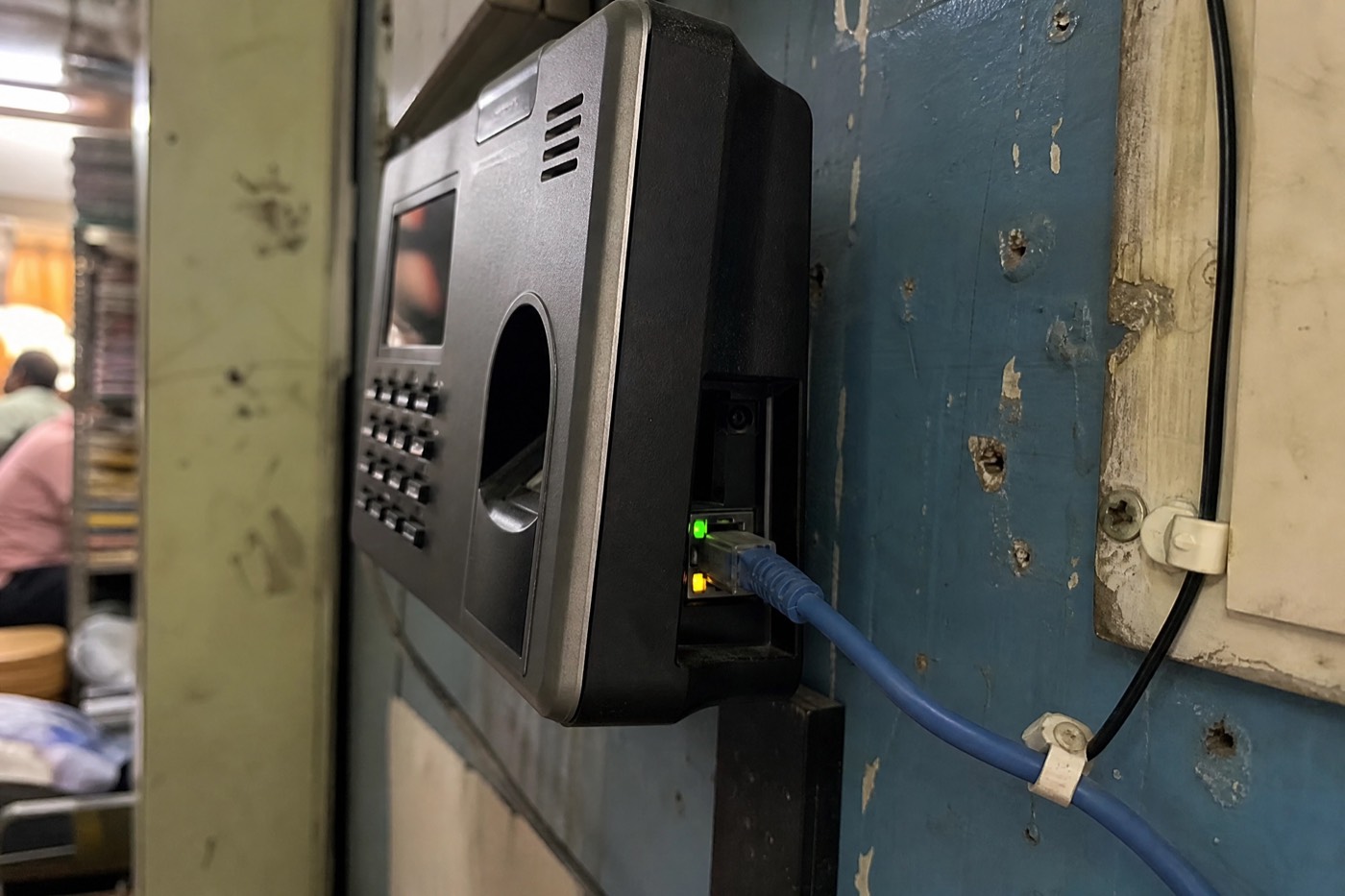
Still timing out? Type ipconfig in that same window and find IPv4 Address. If your PC says 192.168.29.10 and the device says 192.168.1.201, they’re on different subnets. Change the device IP to match your PC’s subnet, or the other way around.
3. Restart the RD Service
This step has no business being this important, but it is. eTimeTrackLite talks through a background Windows service called RD Service, sometimes listed as RDSE or eSSL RD Service. When it crashes, it often does so without a popup or a useful error. The network is fine. The device is fine. The go-between just stopped doing its job.
- Press
Windows + R, then typeservices.msc. - Find RD Service.
- Right-click and choose Restart.
- Return to eTimeTrackLite, select the device, and click Connect.
Red dot turns green? You’re done. Go run your shop.
Still offline? Deeper fixes
If the three steps above didn’t do it, the problem is less common but still usually fixable without a technician.
eTimeTrackLite says “Device not found”
Different from “offline.” This means the software no longer has a usable device entry. Go to Device Management → Add Device and add it back using the device IP you confirmed above, port 4370, and a blank communication password unless you deliberately set one.
Ping works, but eTimeTrackLite still won’t connect
First, close eTimeTrackLite and reopen it with Run as administrator. Then check whether Windows Firewall is blocking TCP port 4370. A Windows update can quietly reset that rule. Finally, make sure the communication password on the device matches the one in its eTimeTrackLite device entry.
Device shows green but no punches come through
Synchronize the device clock, then expand the download date range to the last seven days. Some installations default to “today only.” If the device has been running for years with no old logs cleared, check whether the attendance memory is full before you do anything else.
It reconnects, then drops again in a few days
This is usually DHCP lease expiry. Your router hands the device a new IP after its lease renews, while eTimeTrackLite keeps looking for the old one. The permanent fix is to reserve the device’s IP. More on that below.
Why this keeps happening: three root causes
The network is fine. The device is fine. The go-between just stopped doing its job.
The silent IP swap
Routers assign addresses on a timer. When yours renews, the device can receive a new IP and eTimeTrackLite keeps knocking on the old one.
Power cuts resetting the device
Some older units reset network settings after a hard power loss. Without a UPS, that can turn into a regular Monday problem.
RD Service dying quietly
Windows updates, antivirus software, or a low-memory PC can stop the service with no obvious sign besides the red offline dot.
How to make sure this doesn’t happen again
Give the device a permanent IP via your router
Log into your router’s admin panel — usually 192.168.1.1 or 192.168.29.1. Under DHCP settings, look for Address Reservation, Static DHCP, or IP Binding. Bind the eSSL device’s MAC address to a fixed IP. The router will give it the same address after every reboot and lease renewal.
Or set a static IP on the device itself
- Menu → Comm → Network → DHCP → Off
- IP address:
192.168.1.201(or one that fits your network) - Subnet mask:
255.255.255.0 - Gateway: your router’s IP
Move to a push-based connection where your supported device allows it
eTimeTrackLite uses a PC-to-device polling model. A push-based connection flips that around: the device sends each punch out as it happens, rather than waiting for your PC to find it. Ask Rotabook whether your particular eSSL model and deployment support that option before changing your setup.
Done restarting RD Service every week? Rotabook can assess whether your eSSL model can sync automatically over your shop network.
Check device compatibility →When the hardware is actually broken
About one in twenty times, it isn’t the network or the software. Look at the Ethernet port on the device. With a known-good cable plugged in, the link light should be green or amber. No light at all can mean a damaged port, especially after a power surge.
If the device is out of warranty and more than four years old, do the maths before you repair it. A board repair can cost ₹2,000–₹3,000 plus the visit; a new reliable unit is often ₹6,000–₹8,000. There isn’t always a clever fix. For buying guidance, see our biometric attendance machine buyer’s guide.
The real fix: stop depending on eTimeTrackLite
I’ll give you the straight version. eTimeTrackLite was built for one Windows PC polling one device and producing one Excel sheet at month-end. For that job, it works. But it’s fragile in exactly the ways this page describes: the service crashes, the IP shifts, the firewall changes, and your Monday begins with troubleshooting.
Rotabook runs on your shop PC and keeps your data there. It connects to common biometric machines over the same shop LAN, and the same punches feed attendance, payroll, payslips, and registers — so the month-end Excel shuffle goes away. Whether your particular eSSL model is supported is a five-minute question: tell us the model, and we’ll tell you straight.
Tired of the red dot?
Same shop PC. Same LAN cable. Ask whether Rotabook can support your eSSL setup.
See how it works →
Questions shop owners ask me
Why does my eSSL device keep going offline?
Usually the router reassigned its IP, a power cut reset the network settings, or RD Service stopped in the background. A static IP and a service restart fix most cases.
How do I reconnect an eSSL device in eTimeTrackLite?
Open it as Administrator, confirm the device IP under Menu → Comm → Network, ping the device, restart RD Service, and reconnect. If the device entry is damaged, delete and add it again using port 4370.
What is Port 4370?
It is the common default communication port used by eSSL and ZKTeco attendance devices. Unless you intentionally changed it, leave it set to 4370 in both the device and the software.
Can I fix this without calling a technician?
In many cases, yes. The IP check, the ping, and the RD Service restart are all things you can do yourself in a few minutes. A technician is usually needed only when the Ethernet port is physically damaged or the firmware is corrupted.
How do I stop the device from disconnecting every few days?
Set a static IP — either through a DHCP reservation on your router or by turning off DHCP on the device itself and assigning the IP manually. This prevents the router from silently swapping the device’s address when the lease expires.
Does eTimeTrackLite need internet to work?
No. It communicates over your local network. The PC and the device only need to be on the same LAN.
Menu paths and service names vary a little between eSSL models and software versions. If your screen doesn’t match a step exactly, look for the nearest equivalent — the sequence stays the same.